

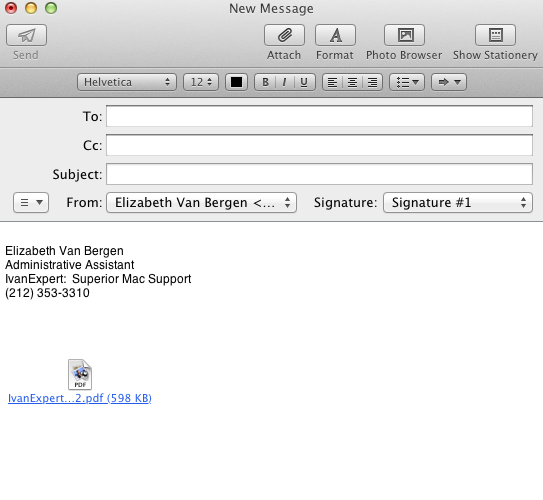
Some research the other day led me to a helpful blog post explaining how to stop attachments from showing a preview of a PDF and/or image.
If you would like to make this the default behavior you’ll need to use the Terminal to set the preference. Terminal is in Applications>Utilities. Open Terminal and type:
defaults write com.apple.mail DisableInlineAttachmentViewing -bool yes
That will make every attachment you send act like an attachment instead of a pretty unusable decoration.
If you decide this isn’t what you’re looking for, to restore inline attachment viewing type:
defaults write com.apple.mail DisableInlineAttachmentViewing -bool false
Restart Mail and you’re back to normal.